Have you ever talked about something with a friend, and minutes later the exact product appears in your phone ads?
Many users start wondering: is your phone recording you?
Modern smartphones include powerful microphones, cameras, and AI features. While these tools help with voice assistants and video calls, they also raise serious privacy questions.
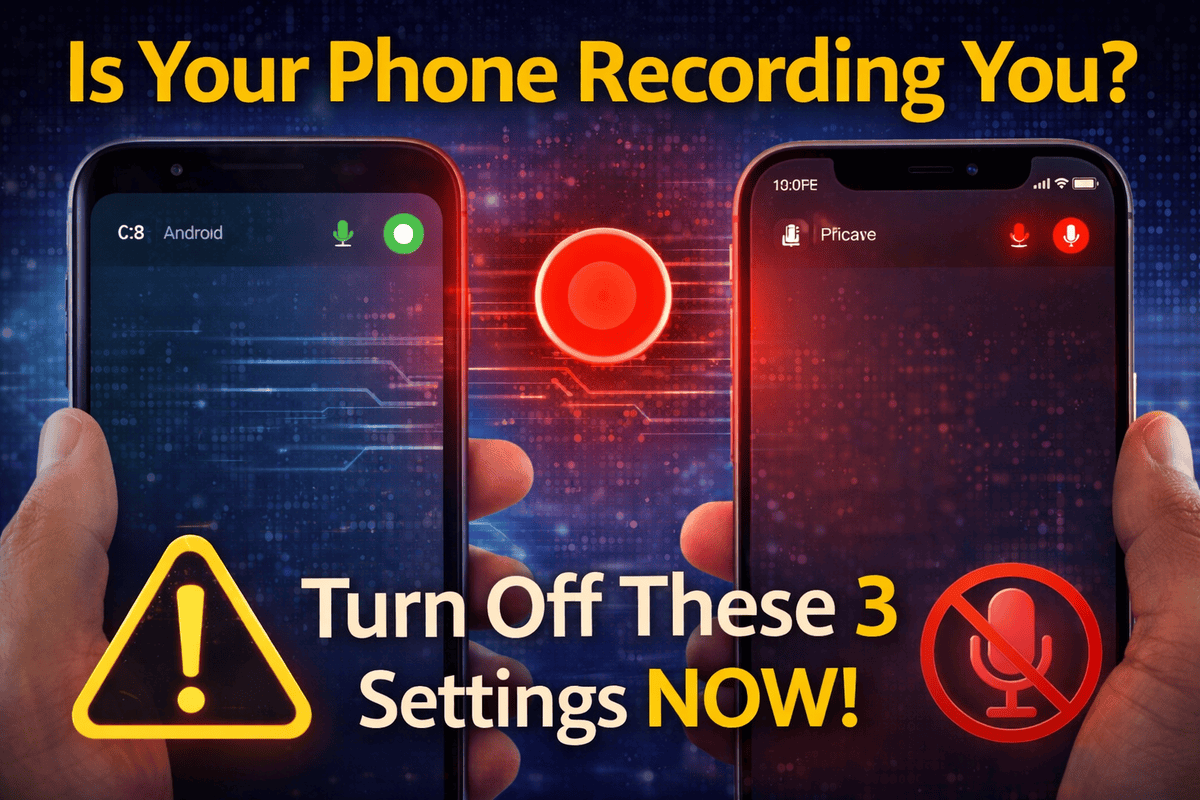
One important clue is the small red or orange dot that appears on your phone screen. That indicator means an app is currently using your microphone or camera.
If you want better privacy, you should review these three critical settings on Android and iPhone right now.
What Does the Red Dot on Your Phone Mean?
Recent Android and iPhone updates introduced a privacy indicator system.
This system displays a colored dot when apps access sensitive hardware.
Common indicators include:
- Orange dot – microphone is active
- Green dot – camera is active
- Red dot (some Android phones) – recording or screen capture
These indicators help users identify when apps access microphones or cameras.
If the dot appears unexpectedly, it may indicate that an app is listening in the background.
Setting #1: Turn Off Unnecessary Microphone Access
Many apps request microphone permissions even when they do not actually need them.
This increases the risk of apps listening to conversations without your knowledge.
How to Check on Android
- Open Settings
- Tap Privacy
- Select Permission Manager
- Choose Microphone
Here you can see which apps currently have access.
Disable microphone permissions for apps that don’t require voice input.
How to Check on iPhone
Follow these steps:
- Open Settings
- Tap Privacy & Security
- Select Microphone
You will see a list of apps using microphone access.
Turn off permissions for apps that should not record audio.
This step helps stop apps listening on your phone unnecessarily.
Setting #2: Review Camera Permissions
Many apps also request camera access.
While this is necessary for apps like Instagram or Zoom, other apps should not require camera permissions.
Check Camera Permissions on Android
Follow this path:
- Open Settings
- Tap Privacy
- Select Camera access
You can remove permissions for suspicious apps.
Managing camera microphone permission Android settings improves privacy significantly.
Check Camera Permissions on iPhone
On iPhone, review camera access like this:
- Open Settings
- Tap Privacy & Security
- Select Camera
Disable camera access for apps that do not need it.
Keeping camera permissions restricted prevents unauthorized recording.
Setting #3: Disable Background Voice Assistants
Voice assistants like Google Assistant or Siri constantly wait for activation commands.
This means the microphone stays in passive listening mode.
While companies claim the system only activates after hearing trigger words, many users prefer extra privacy.
Disable Voice Assistant Listening
You can reduce passive listening by adjusting settings.
For Android:
- Open Google app settings
- Disable Hey Google detection
For iPhone:
- Go to Siri & Search settings
- Disable Listen for “Hey Siri”
Turning off these features limits unnecessary microphone activation.
Why Phones Sometimes Appear to “Listen”
The idea that your phone constantly records conversations is controversial.
Most major companies deny actively recording users without permission.
However, several factors create this impression.
Advertising Data Tracking
Apps track user behavior such as:
- browsing history
- search queries
- location data
- social media activity
These signals allow advertising algorithms to predict interests very accurately.
This is why ads often seem connected to recent conversations.
Background App Permissions
Another reason is excessive app permissions.
Many apps collect data like:
- audio triggers
- device usage
- analytics information
Reducing these permissions improves privacy and reduces tracking.
How to Identify Apps Using Your Microphone
Both Android and iPhone now offer built-in tools for monitoring microphone usage.
Android Privacy Dashboard
The Android Privacy Dashboard shows:
- microphone activity history
- camera access logs
- location usage
You can check which apps accessed the microphone recently.
iPhone Privacy Indicators
Apple also introduced strong privacy features.
You can view microphone access through:
- privacy settings
- control center indicators
- app permission logs
These features help users understand when their phone hardware is active.
Pro Tip (Expert Insight)
Security experts recommend reviewing app permissions every few months.
Apps often gain additional permissions during updates.
Follow this simple privacy checklist:
- remove unused apps
- disable microphone access for unnecessary apps
- restrict camera permissions
- check background activity
These small steps dramatically improve your phone privacy settings.
Other Privacy Settings You Should Check
Besides microphone and camera permissions, consider adjusting these settings as well.
Location Tracking
Many apps track location continuously.
Disable location access for apps that do not require it.
App Tracking Permissions
Both Android and iOS now include options to limit tracking.
This reduces personalized advertising and background data collection.
Background App Activity
Some apps run continuously in the background.
Limiting background activity can improve both privacy and battery life.
Should You Be Worried About Phone Recording?
In most cases, smartphones do not secretly record users all the time.
However, excessive permissions can still create privacy risks.
Understanding Android microphone access settings and iPhone microphone privacy settings helps users control their data.
The key is not panic but awareness.
By adjusting a few important settings, you can significantly reduce the chances of apps accessing your microphone or camera unnecessarily.
Final Thoughts
If you’ve ever wondered “is your phone recording you?”, the answer is usually related to app permissions rather than secret recordings.
Modern smartphones include built-in privacy indicators like the red or orange recording dot to alert users when microphones or cameras are active.
By reviewing these three key settings, you can:
- limit app permissions
- prevent unnecessary microphone access
- improve overall phone security
Taking a few minutes to adjust these settings today can protect your privacy for the long term.