

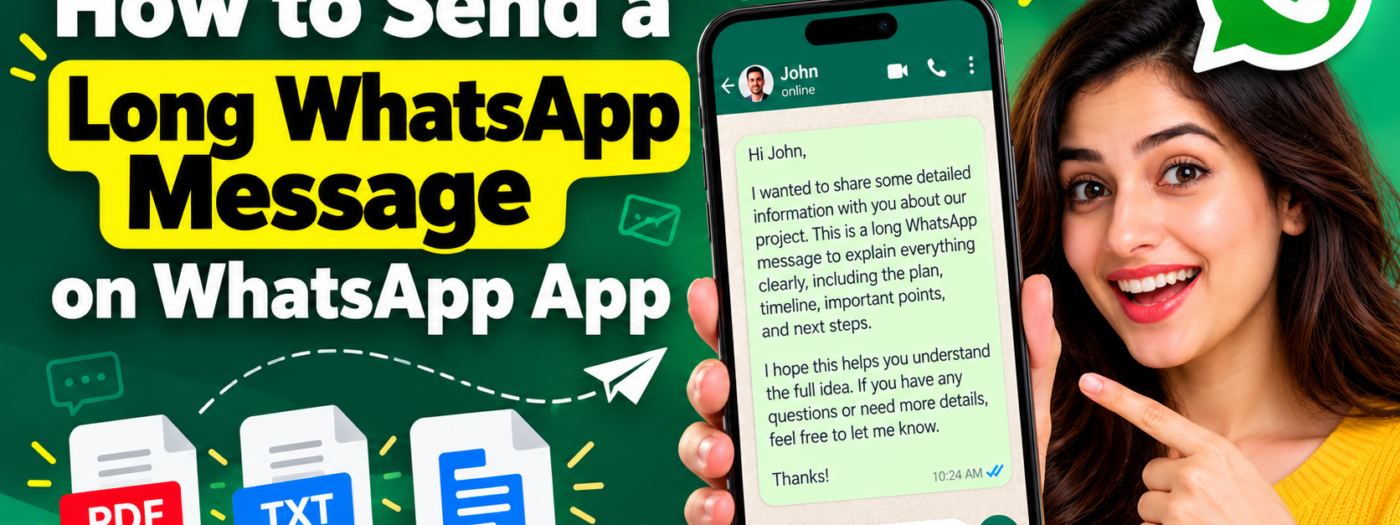
Have you ever tried to send a long message on WhatsApp but struggled to keep everything organized? Perhaps you want to share detailed instructions, send a lengthy birthday wish, explain something important, or forward an entire document to a friend. Typing everything on a small phone keyboard can feel like writing a novel with your thumbs!
Fortunately, you have several practical ways to send a long WhatsApp message without making the process unnecessarily complicated.
In this guide, you’ll learn how to send long messages using the WhatsApp app on Android and iPhone, share lengthy text as a document, and troubleshoot common sending problems. We’ll also explain when splitting a message into smaller parts makes more sense.
How to Send a Long WhatsApp Message Using the WhatsApp App
The easiest method is to type or paste your message directly into a WhatsApp conversation. This works well when you want to share a detailed explanation, personal message, set of instructions, or other text.
Follow these steps:
- Open WhatsApp on your Android phone or iPhone.
- Open the individual or group chat where you want to send the message.
- Tap the message box at the bottom of the screen.
- Type your message or paste text copied from another app.
- Review the message to check its spelling, spacing, and formatting.
- Tap the Send button.
Your message will appear in the conversation once WhatsApp sends it successfully.
Tip: If you have already written your content in Notes, Google Docs, or another text editor, copy it and paste it into the WhatsApp message box. This approach can save time and make editing easier.
However, if your message is too long to send as a single text, try one of the alternative methods below.
How to Send a Very Long WhatsApp Message Without Splitting It
Sometimes, you need to share more than a few paragraphs. You might have a long letter, a detailed project description, or several pages of instructions.
In these situations, sending your text as a document can be a more practical solution.
Method 1: Send Your Long Message as a Text File
A plain text file is useful when you want to share a lengthy message while keeping the content simple and readable.
Here’s how to do it:
- Open a text editor on your phone or computer.
- Write your complete message in the editor.
- Save the content as a
.txtfile. - Open WhatsApp and select the recipient’s chat.
- Tap the attachment icon. On many Android devices, this appears as a paperclip.
- Select Document.
- Choose your saved text file.
- Review the selected file and tap Send.
The recipient can open the file and read the complete message.
This method is particularly useful for long instructions, meeting notes, personal letters, and other text that you want to keep together.
Method 2: Convert Your Long Message Into a PDF
A PDF is another useful option when you want to share a long message with clear headings, paragraphs, and consistent formatting.
For example, you might want to send a detailed proposal, a formal letter, or a collection of instructions.
To do this:
- Write your content in a document editor.
- Format the text with suitable headings and paragraphs.
- Export or save the document as a PDF.
- Open the relevant WhatsApp conversation.
- Tap the attachment icon and choose Document.
- Select the PDF file.
- Tap Send.
WhatsApp supports document sharing, including PDFs, with a maximum document file size of 2 GB according to its Help Center. However, your recipient still needs a suitable app or compatible device to open the document.
You can find the official instructions in the WhatsApp Help Center.
Which method should you choose?
Use a text file when simplicity matters most. Choose a PDF when you want your message to look more professional and preserve its layout.
How to Send a Long WhatsApp Message Without Any Extra App
You don’t always need to install another application to send lengthy text.
If you have already written your message in a document or notes app, you can use the copy-and-paste method.
Follow these steps:
- Open the app containing your text.
- Select the content you want to share.
- Tap Copy.
- Open WhatsApp and select your recipient.
- Press and hold the message box.
- Tap Paste.
- Check the text and send it if WhatsApp accepts it.
This method works well for content you have already prepared, such as announcements, greetings, business messages, and detailed explanations.
Keep in mind that the ability to paste a large amount of text does not guarantee that WhatsApp will accept it as one message. If the app doesn’t send the entire text, divide it into smaller messages or share it as a document.
You should also avoid downloading unfamiliar apps that request unnecessary access to your WhatsApp account or private conversations.
How to Send a Long WhatsApp Message Using WhatsApp Web
If you prefer typing on a computer, WhatsApp Web or the WhatsApp desktop app can make composing lengthy messages more comfortable.
A physical keyboard is generally easier to use for long paragraphs than a phone’s touchscreen keyboard.
Here’s what to do:
- Open WhatsApp Web or the WhatsApp desktop app.
- Sign in using the available instructions.
- Select the person or group you want to message.
- Type your message or copy and paste your prepared text.
- Review the content and click Send.
You can also use the attachment option to share a text file or PDF document.
WhatsApp provides messaging features across supported devices. For more information, visit the official WhatsApp website.
A useful tip: Draft lengthy messages in a document editor first. This makes it easier to correct mistakes, reorganize paragraphs, and remove unnecessary information before sending anything.
How to Send a Long WhatsApp Message in Multiple Parts
If you cannot send your entire message at once, splitting it into smaller sections is a straightforward alternative.
For example, you could divide a long explanation into three messages:
- Part 1: Introduction and background.
- Part 2: Main explanation and important details.
- Part 3: Conclusion and next steps.
Add a simple label to each part so the recipient can follow the correct order.
You can write:
“Part 1 of 3 — I’ll send the remaining details in the next two messages.”
This approach is especially helpful when sharing travel plans, instructions, event information, or detailed answers.
However, avoid breaking every sentence into a separate message. Nobody needs 47 notifications just to understand a dinner invitation!
Before sending the messages, check that each section makes sense on its own and that the complete explanation follows a logical order.
Why Can’t I Send a Long WhatsApp Message?
If WhatsApp refuses to send your message, several issues could be responsible.
1. The Message May Be Too Long
WhatsApp may not accept your entire text as one message. Try dividing it into smaller sections or sending the content as a document.
2. Your Internet Connection May Be Unstable
WhatsApp requires an active internet connection to send and receive messages. Check your Wi-Fi or mobile data if the message remains pending.
3. Your App May Need an Update
If WhatsApp behaves unexpectedly, check whether an update is available through your device’s official app store.
4. The Message May Contain Unnecessary Formatting
Text copied from websites or document editors can sometimes include unusual spacing or formatting. Paste the message into a plain-text editor first, review it, and then copy it into WhatsApp.
For additional troubleshooting steps, consult the official WhatsApp Help Center.
Tips for Writing Better Long WhatsApp Messages
Sending a long message is easy when you organize the content before sharing it.
Use these simple practices to improve readability:
- Keep paragraphs short: Separate different ideas instead of creating one enormous block of text.
- Use clear headings: When appropriate, label different sections to help the reader find important information.
- Remove repetition: Explain each point clearly without repeating the same information unnecessarily.
- Check your spelling: Review names, dates, phone numbers, and other important details before sending.
- Choose the right format: Use a normal text message for conversational content and a document for lengthy material.
- Respect the recipient’s time: If your message contains several pages of information, consider explaining its purpose before sharing the full document.
Remember, a longer message isn’t automatically a better message. Clear communication matters more than word count.
Frequently Asked Questions
Can I send a long WhatsApp message without downloading another app?
Yes. You can type or paste text directly into WhatsApp. For lengthy content, you can also create a text file or PDF using an editor already available on your device and send it as a document.
How can I send a long WhatsApp message on an iPhone?
Open the WhatsApp chat, tap the message box, and type or paste your content. If the message is too long to send as one text, divide it into smaller sections or create a document and share it using the attachment option.
Can I send a long WhatsApp message on Android?
Yes. Open the relevant chat and enter your text in the message box. You can also copy text from another application or send a text file or PDF through the Document option.
Is sending a long message as a PDF better than sending it as text?
It depends on your needs. A normal text message is convenient for everyday conversations. A PDF is often better for lengthy content that needs headings, consistent formatting, or multiple pages.
Can I send a long WhatsApp message from my computer?
Yes. You can use WhatsApp Web or the desktop app to compose and send messages. You can also share supported document files through the attachment option.
Final Thoughts
Learning how to send a long WhatsApp message is simple once you understand the available options.
For everyday conversations, type or paste your text directly into the chat. If the message is too long to send as one text, split it into smaller sections. For lengthy letters, instructions, and detailed documents, consider sending a text file or PDF instead.
Choose the method that suits your content, check your message before sending it, and keep the information easy to read.
After all, the goal isn’t to send the longest message possible. It’s to make sure the other person understands what you want to say.



Leave a Reply