

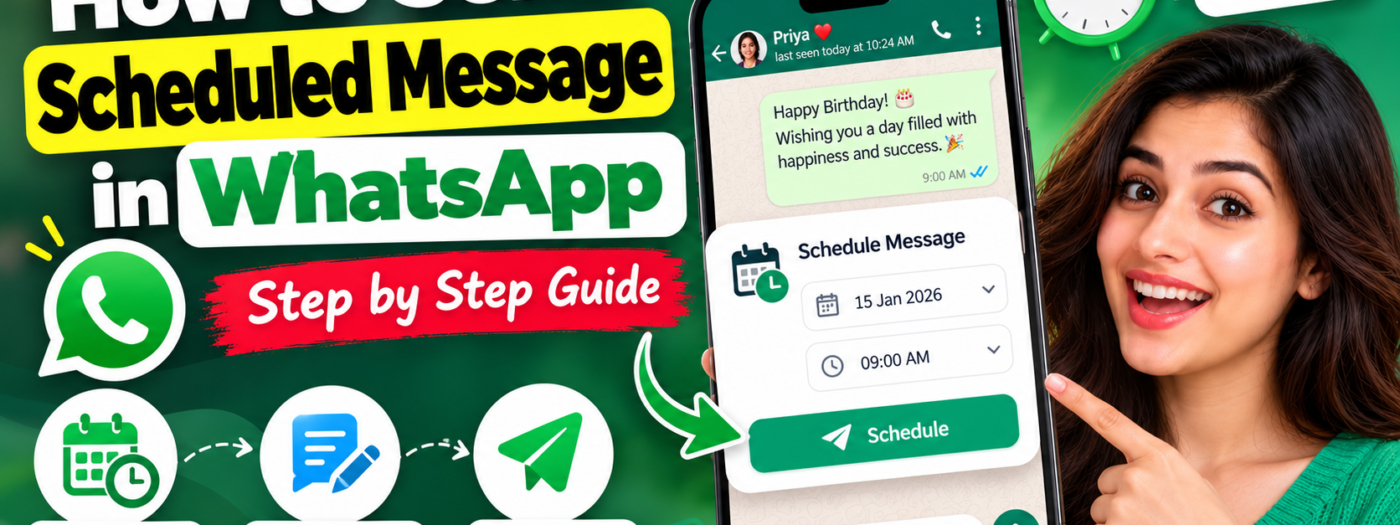
Have you ever wanted to send someone a birthday wish at midnight but worried you might fall asleep before the clock strikes twelve? Or perhaps you want to remind a customer about an appointment tomorrow morning without waking up early just to send the message.
Scheduling a message can make these tasks much easier.
If you’re searching for how to send scheduled message in WhatsApp, the method depends on whether you use regular WhatsApp, WhatsApp Business, or a business messaging service.
WhatsApp offers scheduling capabilities for certain business messaging features, while its personal messaging features have different options. Understanding these differences can help you choose the right method without installing unnecessary applications.
In this guide, you’ll learn about scheduled WhatsApp messages, business scheduling options, automatic replies, and alternative methods for managing messages.
Can You Schedule a Message on WhatsApp?
The answer depends on the WhatsApp feature you use.
WhatsApp’s standard personal chats and its business messaging tools do not necessarily offer the same scheduling options.
WhatsApp Business provides scheduled marketing messages or business broadcasts in eligible markets. These features let qualifying businesses prepare messages and select a future delivery time.
However, an automatic away message is different. It responds to incoming messages during a selected period; it does not independently send a birthday greeting or reminder to a contact at a time you choose.
Before following any tutorial, check whether your account supports the specific scheduling feature you need. WhatsApp may change its features and availability over time.
You can check the official WhatsApp Business features page for information about scheduling and availability.
How to Schedule a WhatsApp Message for Business
If you run a business and have access to WhatsApp’s scheduled marketing messages or business broadcasts, you may be able to schedule messages directly through the supported business interface.
According to the WhatsApp Help Center, eligible users can prepare marketing messages, select recipients, review the message, and choose a future date and time.
Step 1: Open the Business Messaging Feature
Open your WhatsApp Business app and check whether the marketing messages or business broadcasts feature appears in your account.
Availability can vary by country and account. If you cannot find the feature, your account might not have access to it.
Step 2: Create Your Message
Open the relevant messaging feature and start creating a message.
Write the announcement, promotion, appointment reminder, or other business communication you want to send.
Keep the message clear and relevant to the people receiving it.
Step 3: Select Your Audience
Choose the eligible contacts or audience for your message.
Before continuing, review your recipients carefully. Sending a promotion to the wrong audience is an easy way to turn a useful notification into an unwanted interruption.
Step 4: Choose the Scheduling Option
Review the message and the available delivery options.
If your account supports scheduling, select Schedule and choose the intended date and time.
Follow the confirmation steps displayed in the app.
Step 5: Review the Scheduled Message
Check the message content, audience, date, and delivery time before confirming.
Some business messaging features require payment and an active internet connection when the message is due to send. Follow the requirements displayed in your account.
For the latest instructions, consult the official WhatsApp Help Center guide to marketing messages.
Important: These instructions apply to the supported business messaging feature. They do not mean every personal WhatsApp account has the same scheduling option.
How to Schedule WhatsApp Messages on Android
If you use regular WhatsApp on an Android phone, first check whether your current app version offers a native scheduling option.
WhatsApp has been developing scheduled messaging functionality for personal chats and groups, but feature announcements and tests do not guarantee general availability.
If you do not see a scheduling option in your chat, you can consider these alternatives.
Option 1: Use a Reminder
A reminder is a simple and reliable way to avoid forgetting an important message.
- Write your message in your notes app.
- Open your phone’s calendar or reminder application.
- Create a reminder for the intended date and time.
- Include the recipient’s name in the reminder.
- When the reminder appears, open WhatsApp and send your prepared message.
This method does not send the message automatically. You still need to open WhatsApp and tap Send.
However, it avoids granting an unfamiliar application access to your messaging activity.
Option 2: Check Your Phone’s Automation Features
Some Android devices and third-party automation applications offer ways to automate phone actions.
However, these methods can depend on device settings, permissions, app compatibility, and whether your phone is available when the task runs.
An automation may fail if the phone is locked, the app interface changes, or the required permissions are missing.
Before using an automation tool, check its privacy policy, permissions, and compatibility with your version of WhatsApp. Never share your WhatsApp verification code with an unknown service.
How to Schedule a WhatsApp Message on iPhone
iPhone users can also use reminders to prepare messages for a particular time.
Follow these steps:
- Open the Reminders or Calendar app.
- Create a reminder for the date and time you want to send the message.
- Add the recipient’s name and the message you want to send.
- Save the reminder.
- When the reminder appears, open WhatsApp and send the message manually.
This approach works for birthday wishes, appointment reminders, follow-up messages, and other personal communications.
You can also check your current WhatsApp version for a native scheduling feature. Do not assume that a feature mentioned in a beta report is available on every iPhone.
If you use an iPhone automation, verify whether it can actually send the WhatsApp message automatically or merely open the app and prepare an action for you to complete.
How to Schedule Automatic Replies in WhatsApp Business
If your main goal is to respond to customers outside business hours, you may not need a scheduled outgoing message.
WhatsApp Business includes an Away Message feature that can automatically respond when customers contact you while you are unavailable.
Here’s how to configure it:
- Open the WhatsApp Business app.
- Go to the Tools tab.
- Select Away message.
- Turn on Send away message.
- Edit the message you want customers to receive.
- Tap Schedule.
- Choose Always send, Custom schedule, or Outside of business hours, depending on your needs.
- Select the recipients and save your settings.
The outside-of-business-hours option requires business hours in your business profile.
Your device also needs an active internet connection for the away message to send.
For detailed instructions, read the official WhatsApp Help Center guide to away messages.
Example of a WhatsApp Business Away Message
You can adapt this message for your business:
“Thank you for contacting us! Our team is currently unavailable. We have received your message and will respond during our next business hours. Thank you for your patience.”
Remember that an away message responds to incoming messages. It does not schedule a new conversation with a customer who has not contacted you.
Is It Safe to Use Third-Party WhatsApp Scheduler Apps?
Some third-party applications advertise automatic WhatsApp message scheduling.
Before installing one, understand how it works and what access it requires.
An app that controls your screen or uses accessibility permissions may be able to interact with other parts of your phone. An unfamiliar application could therefore create privacy and security risks.
Follow these precautions:
- Download applications only from trusted sources.
- Review requested permissions before granting access.
- Avoid sharing verification codes or account credentials.
- Check whether the application requires your phone to remain unlocked.
- Review the application’s privacy policy and data-handling practices.
- Avoid tools that promise guaranteed delivery without explaining their limitations.
Also check WhatsApp’s applicable terms and policies before using automation tools.
For business messaging at scale, consider official WhatsApp business products and supported business messaging services rather than relying on an unknown application.
Why Is My Scheduled WhatsApp Message Not Sending?
If a scheduling feature is available to you but your message does not arrive as expected, check the following.
Incorrect Date or Time
Review the scheduled date, time, and time zone. A small mistake can cause a message to arrive earlier or later than intended.
Internet Connection Problems
Some scheduling features require an active internet connection when delivery occurs. Check your connection and the requirements shown by your messaging service.
Missing Permissions
A third-party automation tool may need specific permissions to operate. Review those permissions and follow the application’s official setup instructions.
Feature Unavailability
A feature might be limited to certain countries, accounts, or versions of WhatsApp. Check the official documentation rather than relying on an outdated tutorial.
Message or Recipient Errors
Confirm that you selected the correct recipient and that the message remains scheduled. If the interface provides a delivery status, review it for additional information.
Frequently Asked Questions
Can I schedule a WhatsApp message without an extra app?
If your account offers a native scheduling feature, you can use it directly. Otherwise, you can set a reminder and send the message manually. Eligible business users may also have access to scheduled business messaging.
Can I schedule WhatsApp messages on Android?
Your available options depend on your WhatsApp version, account, and device. Check for a native scheduling feature. If none appears, use a reminder or investigate a trusted automation method.
Can I schedule WhatsApp messages on an iPhone?
Check whether your WhatsApp version supports native scheduling. Otherwise, use the Reminders app to notify you when it is time to send the message.
Can WhatsApp Business send automatic messages?
Yes. WhatsApp Business supports features such as greeting and away messages. Eligible accounts may also have access to scheduled marketing messages or business broadcasts. These features serve different purposes.
Is an away message the same as a scheduled message?
No. An away message automatically responds to an incoming message during configured periods. A scheduled message sends content at a selected future time, subject to the scheduling feature’s requirements.
Final Thoughts
Learning how to send scheduled message in WhatsApp starts with understanding which features your account supports.
For business communications, eligible WhatsApp Business users can access scheduled messaging features in supported markets. For personal messages, check your current app for native scheduling or use a reminder to send the message manually.
If you need automatic replies while you are away, WhatsApp Business offers an away-message feature with scheduling options.
Choose a method that suits your needs, verify the date and time, and protect your account by avoiding untrusted automation tools.
After all, remembering a birthday is important. Accidentally sending the birthday wish three days late is a different kind of automation problem!



Leave a Reply